
How Flows are Structured
Understand the key concepts of a Flow: the navigation element, pages, routes, and branching.
A Flow is a collection of pages connected by routes. Unlike single paywalls, the order of pages in the sidebar doesn't determine the flow. The connections (i.e. routes) you create do. The Navigation element is what makes a paywall opt into becoming a Flow.
To understand flows, you only need to be aware of these core concepts to get started:
- Navigation Component: The base component which contains your flow.
- Pages: The content of your flow, each one is housed within a central navigation component.
- Routes: The user-defined ordering of how users progress through a flow.
- Branches: A way to dynamically decide which route to take.
The Navigation element
The Navigation element is what turns a paywall into a Flow. Without it, you have a standard paywall. With it, you unlock the Canvas view and the ability to connect pages together.
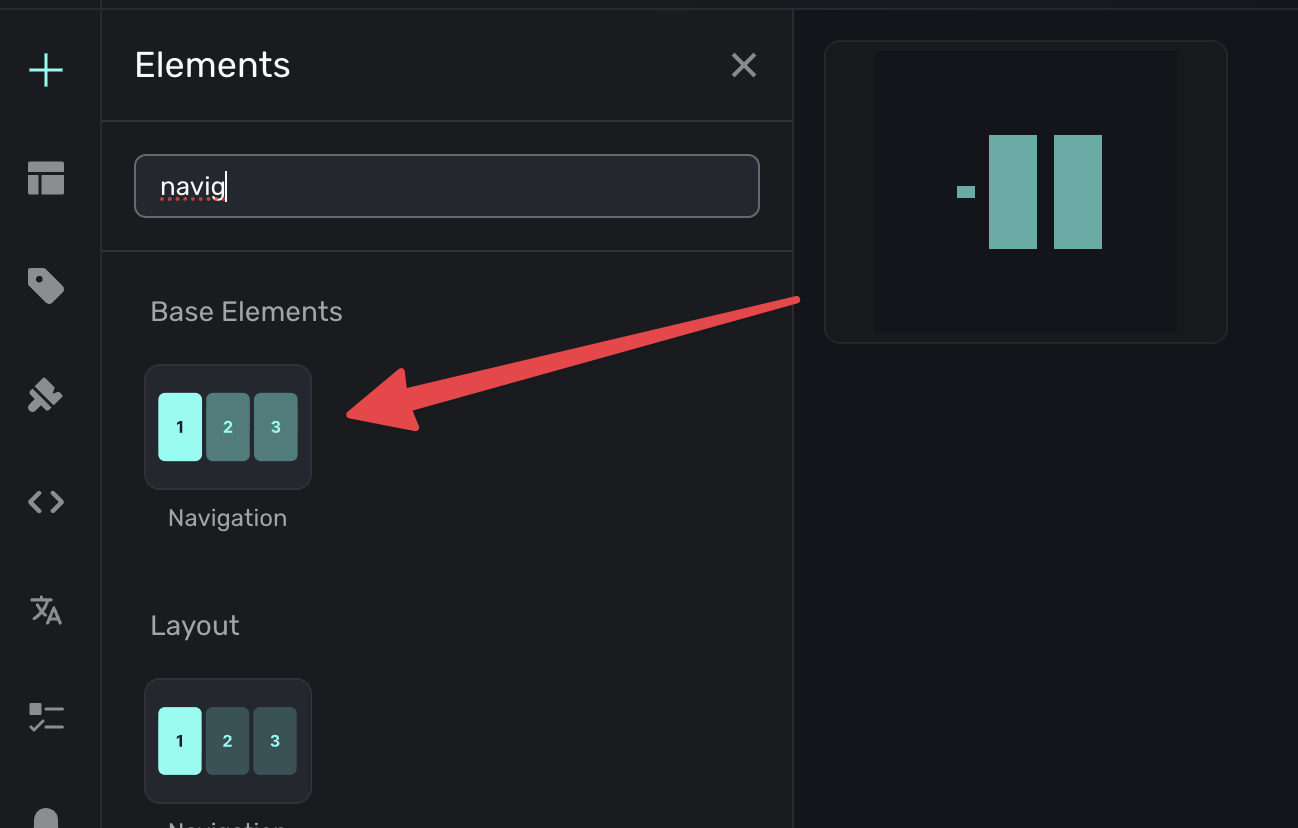
To add it:
- In the left sidebar, click + to add a new element.
- Choose Navigation under the "Base Elements" header.
Once added, you'll see your paywall appear in the Canvas view, ready to be connected to other pages.
Pages
Each page in a Flow is built the same way you build a paywall. Once you have a navigation element, adding pages to it enables the Flow editing capabilities:
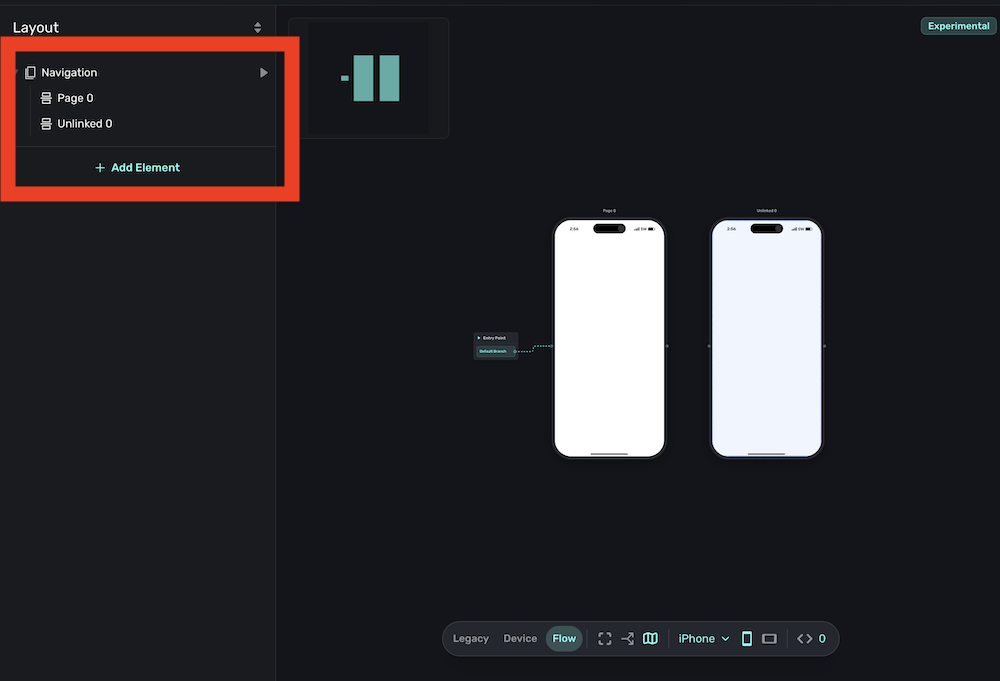
You can add elements, style them, and configure actions just like you would with any paywall.
- A Flow can have as many pages as you need.
- Pages that aren't connected to the flow are labeled "unlinked".
- Each page can have its own products, styling, and behavior.
Once you add one or more pages, the "Flow" button the floating toolbar will become active:

Routes
Routes are the connections between pages. You create them by linking one page to another in the Canvas view. To begin, you'll click and drag from the starting point of the flow to the first page you want to use:
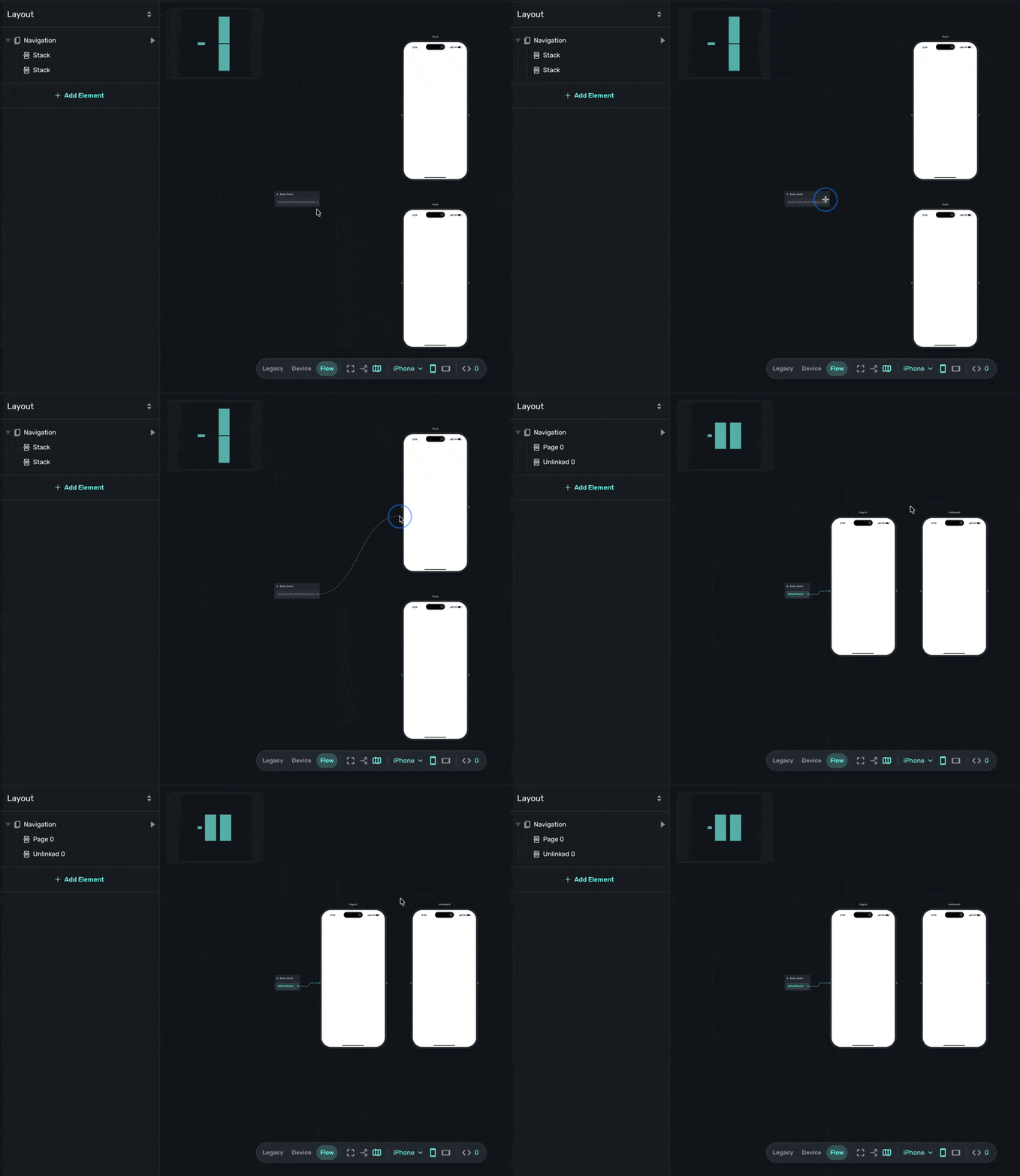
- Each route defines how users move from one page to the next.
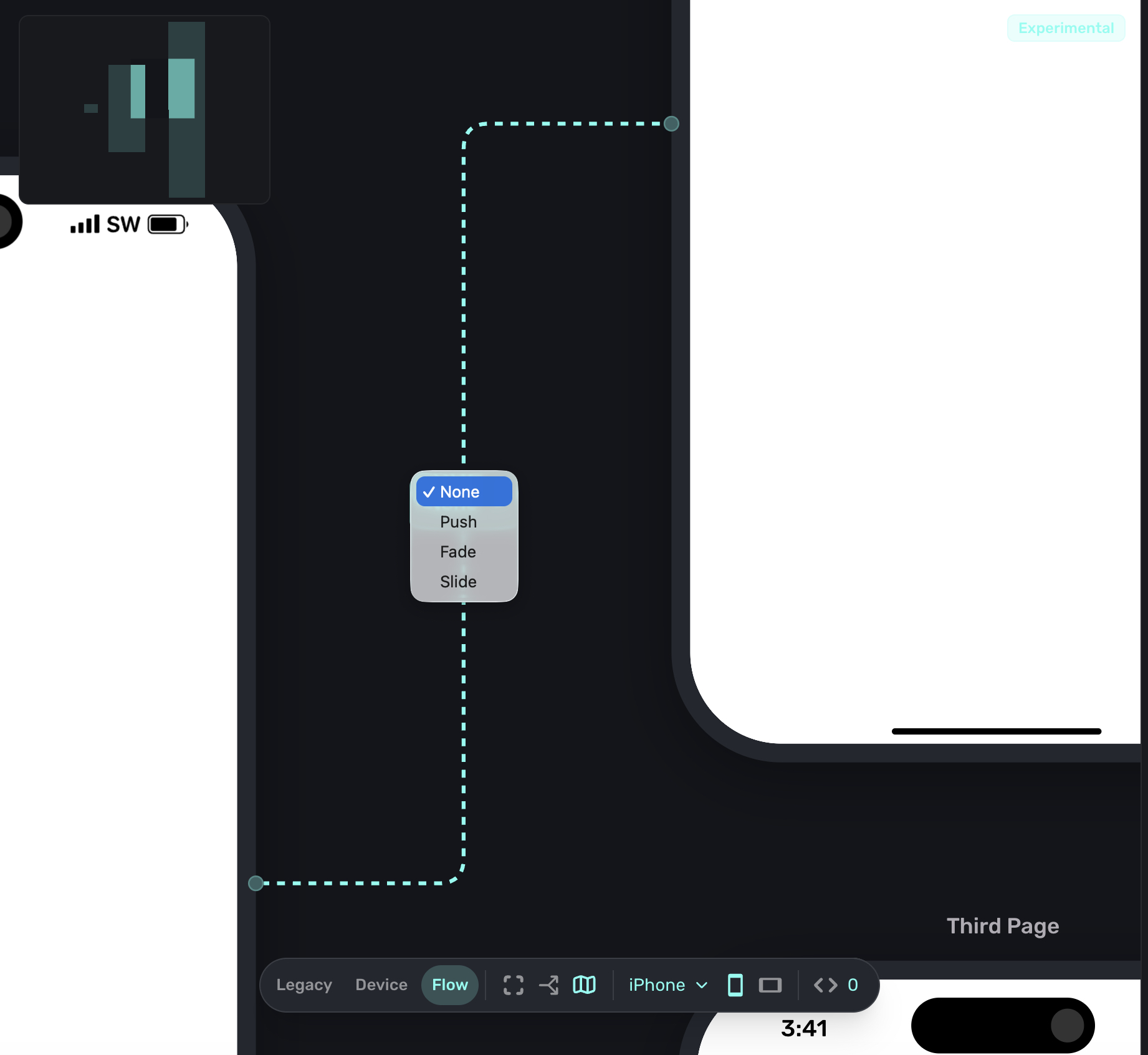
- Routes can have different animation styles (push, fade, etc.).
- The first page in your flow connects to the "flow entry point".
You can control any routes animation style by clicking on it:
Branching
Routes themselves can be conditional. If you need to show different pages based on user input or attributes, you can by creating a branch. Any route can become a branch. For example:
- If a user selected "Grow subscriptions" in a multiple choice element, go to Page A.
- Otherwise, go to Page B.
Branching is configured in the route settings, not on buttons or CTAs. This keeps your flow logic centralized and easier to maintain.
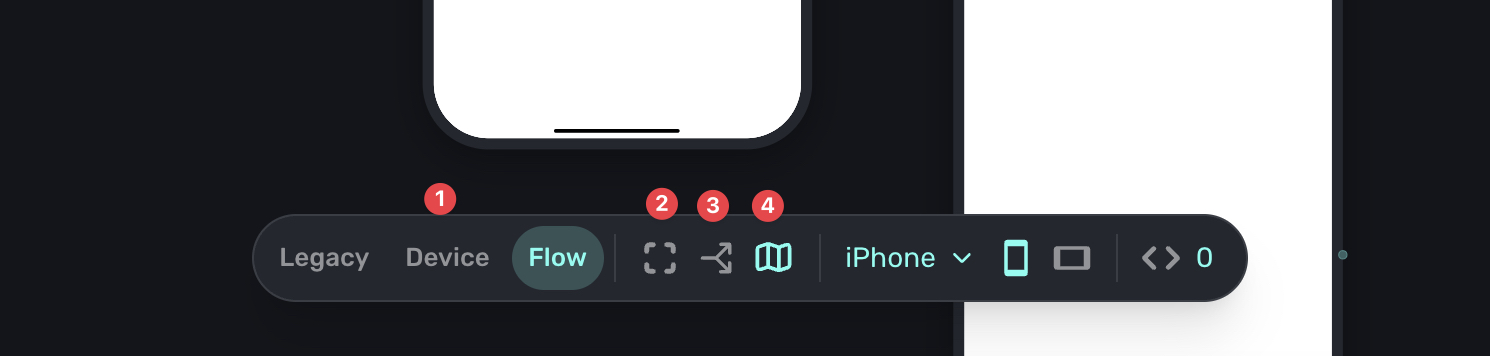
The floating toolbar
The floating toolbar has been updated to support Flows. You'll find new controls for:
- Switching between Device view and Canvas view.
- Fitting the viewport to fit the entire flow canvas.
- Editing branches.
- Toggling the mini-map.
For more details, see The Canvas.
How is this guide?
Edit on GitHub