
The Canvas
See your entire flow at a glance, zoom in and out, and use the mini-map to navigate complex flows.
The Canvas is a display mode in the paywall editor tailored to help you see your entire flow laid out. It works similar to many design tool canvas' in that you can pan around, zoom to see the big picture, or click any page to focus it.
Device view vs. Canvas view
There are two ways to view your flow:
- Device view: The familiar single-page editor for building individual pages. This is where you add elements, style them, and configure actions.
- Canvas view: The zoomed-out view showing all pages and their connections. This is where you link pages together and see the overall structure.
Switch between them using the floating toolbar, or by clicking on a page in Canvas view to zoom into Device view.
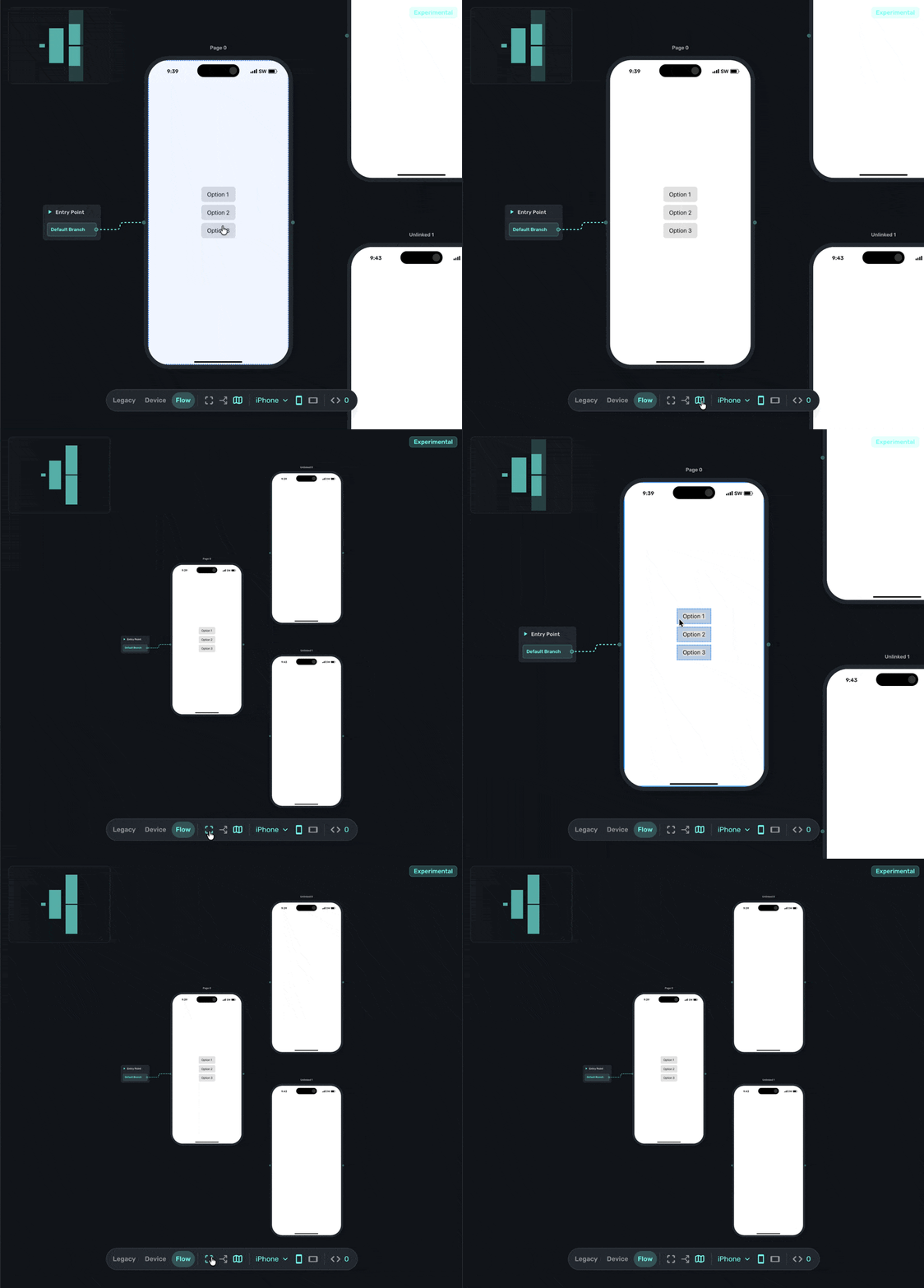
Zooming
Use these controls to navigate the Canvas:
- Keyboard:
Cmd + scroll(Mac) orCtrl + scroll(Windows) to zoom in and out. - Toolbar: Use the zoom controls in the floating toolbar.
- Click: Click any page in Canvas view to zoom into that page.
The mini-map
For larger flows, the mini-map helps you navigate. It shows a thumbnail of your entire flow with your current viewport highlighted.
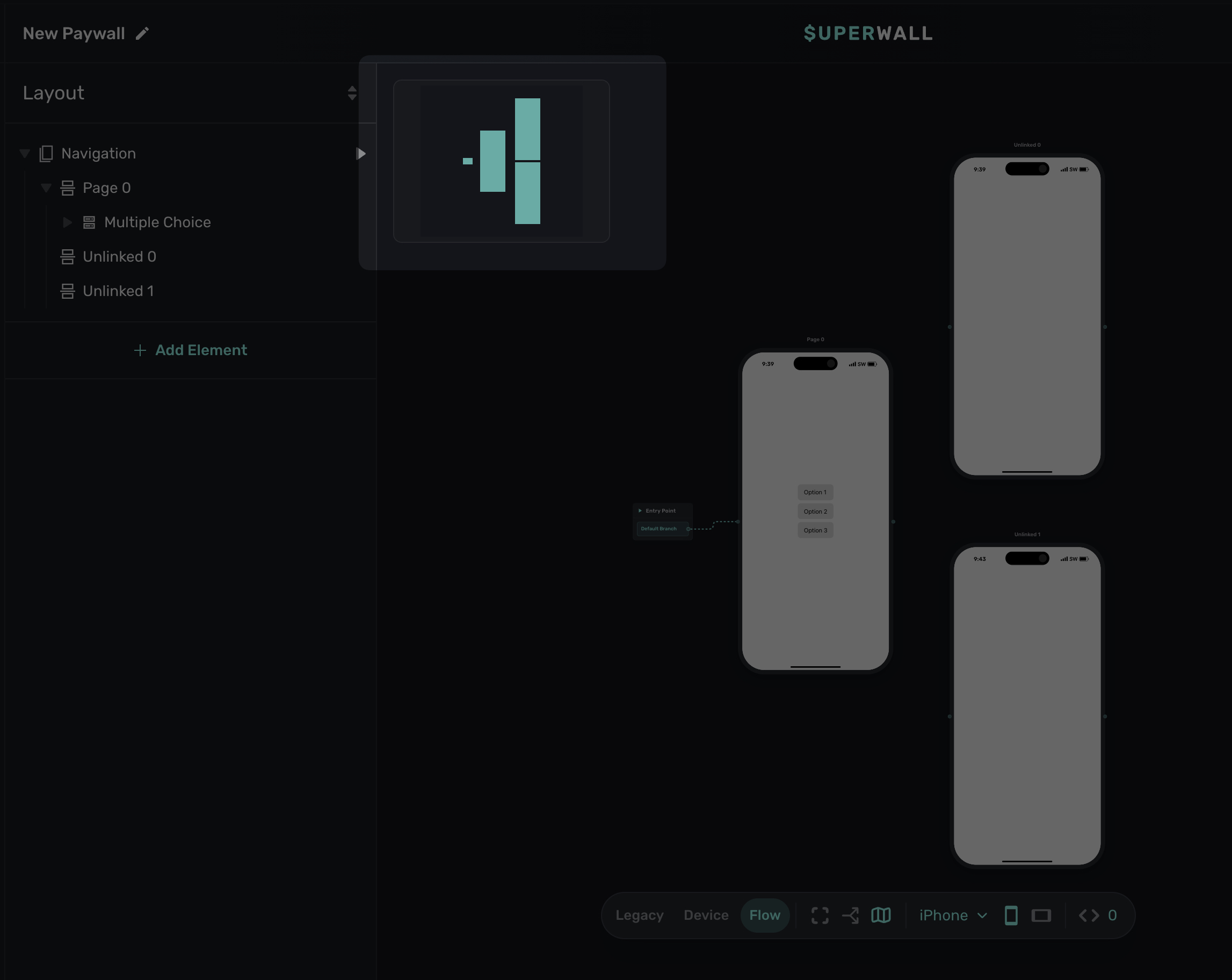
You can toggle the mini-map on or off from the floating toolbar. Also, you can click and drag anywhere within the minmap to focus the canvas to that specific area.
Reordering pages on the Canvas
You can drag pages on the Canvas to arrange them visually. This helps make complex flows easier to understand at a glance. Simply click and drag any page to reposition it.
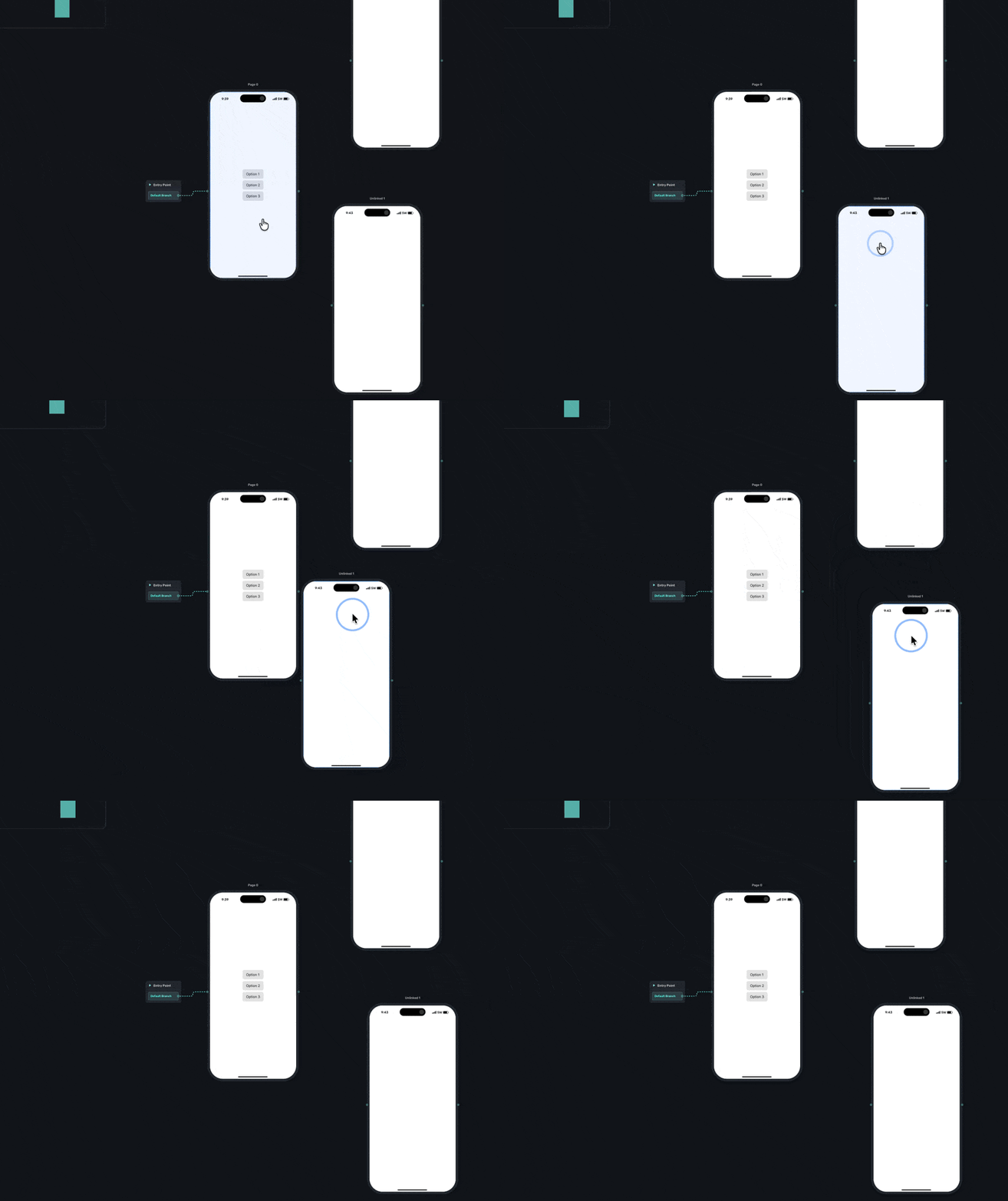
You can use the toolbar icon to snap pages back to their default order:
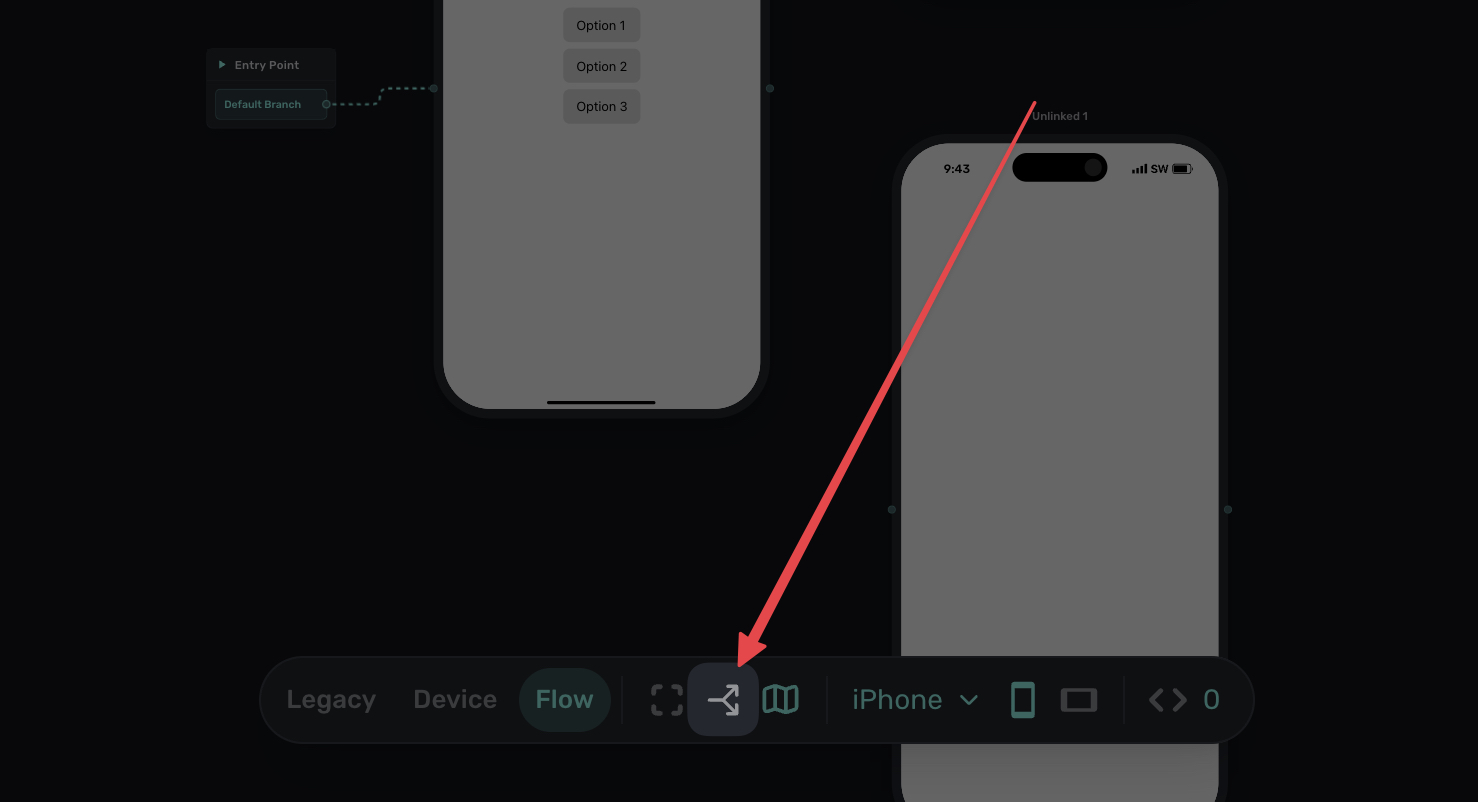
Remember that how pages are arranged on the Canvas is purely for your organization. The routes and branches you create determine the actual user journey.
How is this guide?
Edit on GitHub